The Phish Alert Button (PAB) is a powerful tool integrated into your Gmail account that empowers you to report suspicious emails directly to the security experts.
When to use the PAB
Use the PAB for suspicious emails or potential phishing attacks, but not for spam or marketing emails. There is a separate “report spam” button included in your Gmail.
How to use the PAB in three easy steps
The Phish Alert Button appears as a small orange fishhook icon on the right-hand side of your Gmail workspace.
1. Open the suspicious email
If you receive an email that feels “off” – perhaps it asks for a password, has an unusual sense of urgency, or comes from a misspelled domain – open the message but do not click any links or download attachments.
2. Click the PAB icon
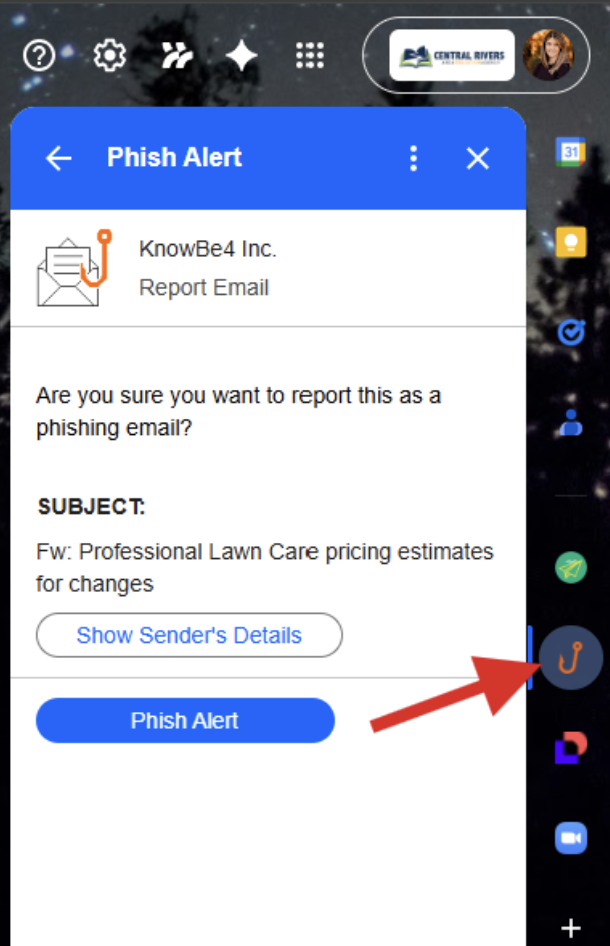
Look at the side panel on the right side of your Gmail screen. Click the orange hook icon. Note: If you don’t see the side panel, click the small arrow in the bottom right corner of Gmail to expand it.
3. Confirm the report
A prompt will appear asking if you are sure you want to report the email as a phishing attempt. Click “Phish Alert” to finalize. You will receive a brief “Thank You” message, and the email will disappear from your inbox.
When should you use it?
You should use the PAB if you encounter:
- Request for Credentials: Any email asking for your login or Multi-Factor Authentication (MFA) codes.
- Unexpected Attachments: Invoices or “scanned documents” you weren’t expecting.
- Urgent Threats: “Your account will be deleted in 2 hours if you don’t click here.”
- Strange “From” Addresses: Emails that look like they are from a colleague but have an external or weirdly spelled address.
Pro tip: If the email turns out to be a legitimate internal security test, using the PAB will earn you a “congratulations” notification!